Best Cloud Backup Services in 2026: Personal and Business Picks
We compare the best cloud backup services for individuals, freelancers and small businesses, including Backblaze, IDrive, Acronis, Carbonite and CrashPlan.

The best cloud backup service is the one that can restore the right files when something goes wrong—not simply the service offering the largest storage number. For most people who want straightforward, unlimited backup for one computer, Backblaze is our leading choice. IDrive is the stronger all-round option for several devices, while Acronis True Image is best suited to people who also want disk imaging and integrated cyber protection.
Editorial note: This is an independent comparison of current plans, documented features and intended use cases. We do not claim laboratory speed results or hands-on findings that we have not yet verified. Prices and promotions change frequently; all figures were checked on 23 September 2026.
Best cloud backup services: our quick verdict
| Service | Best for | Starting position | Main limitation |
|---|---|---|---|
| Backblaze | Simple unlimited backup for one Windows PC or Mac | $9 monthly or $99 yearly per computer | Each computer needs its own licence |
| IDrive | Multiple computers and mobile devices under one account | 5TB Personal plan listed at $99.50 yearly before promotions | Storage is capped and overage charges can apply |
| Acronis True Image | Full-system images plus ransomware and malware protection | Tiered Essentials, Advanced and Premium subscriptions | More complex than a basic file-backup service |
| Carbonite Safe | Automatic unlimited backup with a familiar consumer focus | Basic plan advertised from $6.33 per month | Plan differences and computer licensing require careful checking |
| CrashPlan | Freelancers and small organisations protecting endpoint data | Business-oriented endpoint and SaaS plans | Not designed as a mainstream home-user service |
Our overall recommendation: choose Backblaze when you have one main computer and want the least complicated route to an off-site copy. Choose IDrive when one account must protect several computers or when you want more control over what is stored. Consider Acronis when recovering an entire system—not just individual files—is a priority.
How to choose cloud backup
Cloud backup, cloud storage and file synchronisation are related but not interchangeable. A synchronisation service makes files available across devices and is useful for collaboration. A backup service is primarily designed to preserve recoverable copies after deletion, drive failure, theft, corruption or ransomware.
Before comparing headline prices, answer these questions:
- How many computers need protection? An unlimited plan charged per computer may be economical for one machine and expensive for a household or small team.
- How much data do you have? Capped plans can cover multiple devices, but you need room for growth and should understand overage charges.
- Do you need file recovery or full-system recovery? File backup restores documents and photos. Disk imaging can rebuild an operating system, applications and configuration after a failed drive.
- How long must deleted and changed files remain recoverable? Version history and retention policies can matter more than the storage allowance.
- Are external drives, NAS devices or servers included? Many personal plans restrict these or treat them differently.
- Who controls the encryption key? Private-key or zero-knowledge options improve privacy but can make recovery impossible if the key is lost.
- Can you test a restore? A backup should be treated as unproven until representative files have been restored successfully.
1. Backblaze — best for simple unlimited computer backup
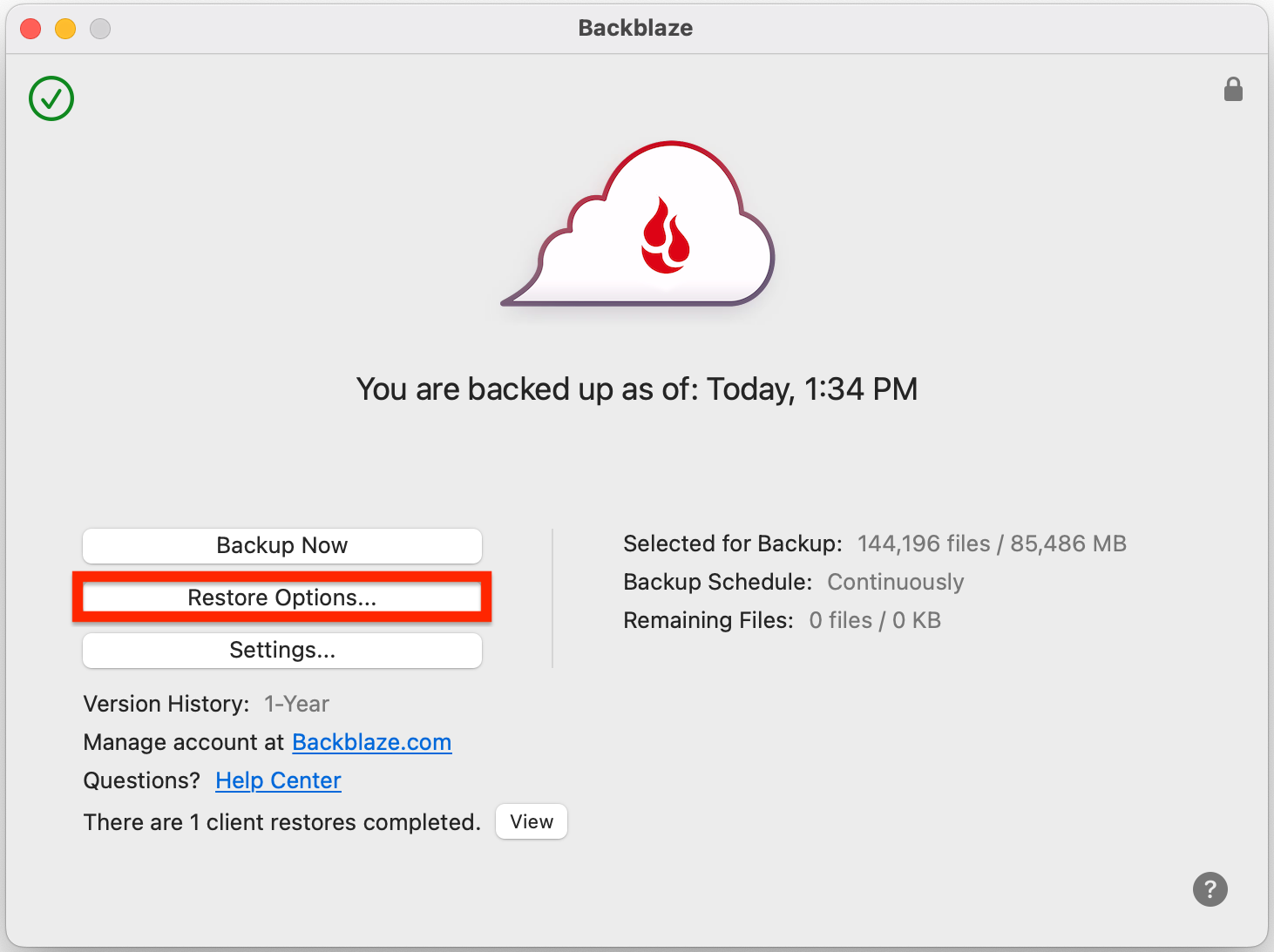
Backblaze is the clearest recommendation for a person with one main Windows computer or Mac who wants backup to happen quietly in the background. Its Computer Backup plan is priced per computer and includes unlimited data rather than making the customer choose a storage allowance.
Backblaze currently lists Computer Backup at $9 per month, $99 per year or $189 for two years. Its official plan information says user-created data on the computer and connected external drives can be backed up. A 15-day trial is available without a credit card. See the current Backblaze pricing page.
Why Backblaze stands out
- Unlimited backup removes the need to estimate storage before subscribing.
- Automatic selection is approachable for people who do not want to build complicated backup jobs.
- Connected external-drive support is useful for photo and video collections, subject to Backblaze’s connection and retention rules.
- Monthly, annual and two-year billing provide straightforward price comparisons.
- Business workstation backup uses the same simple per-computer model, with optional central controls.
What to consider
The simplicity comes with boundaries. Pricing is per computer, so protecting four household machines normally requires four licences. Backblaze Computer Backup is also different from Backblaze B2, the company’s metered object-storage product. B2 is flexible for NAS devices, servers and technical backup applications, but it is not a like-for-like replacement for the consumer desktop service.
Best fit: an individual, photographer or home worker with one data-heavy PC or Mac who values simplicity and predictable capacity.
2. IDrive — best all-rounder for multiple devices
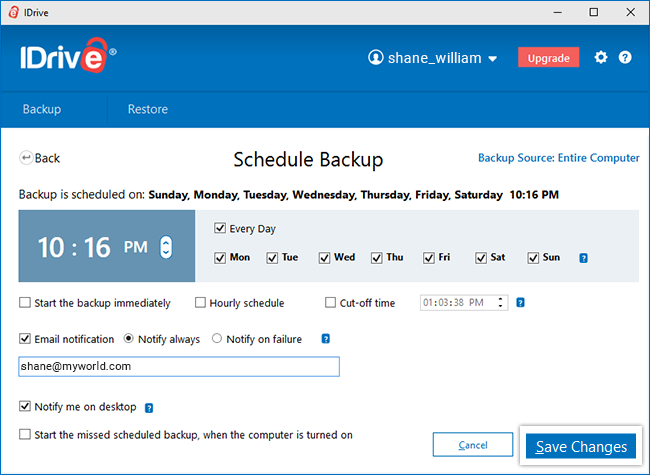
IDrive takes a different approach. Instead of unlimited data for one computer, it provides a storage pool that can be used across multiple PCs, Macs and mobile devices. That model is often a better fit for families, freelancers and small businesses with several machines.
IDrive’s standard Personal pricing lists a 5TB plan at $99.50 per year, although introductory discounts are common. The provider warns that storage beyond the plan allowance may incur overuse charges—currently stated as $0.25 per GB per month for Personal plans and $0.50 per GB per month for Team and Business plans. Always compare the renewal price, not only a first-year promotion, on the official IDrive pricing page.
Why IDrive stands out
- One account can protect multiple computers and supported mobile devices.
- Personal, Team and Business tiers make it easier to move from home use to managed users.
- File backup, synchronisation and sharing features sit within the same broader service.
- Business plans cover a wider range of systems, including servers, depending on the selected tier.
- IDrive also offers separate cloud-to-cloud products for Microsoft 365 and Google account data.
What to consider
A fixed allowance requires active capacity management. A 5TB plan may be generous for documents and photographs, but video collections, disk images and several computers can consume it quickly. Customers should enable usage alerts and check whether a promotional price changes at renewal.
IDrive also has many products with similar names. Computer backup, IDrive e2 object storage and Microsoft 365 backup solve different problems. Confirm that the checkout page describes the service you actually need.
Best fit: a household or small organisation that wants to protect several devices under one storage allowance and prefers more backup controls than Backblaze provides.
Read our IDrive review Check IDrive pricing ↗
3. Acronis True Image — best for complete system protection
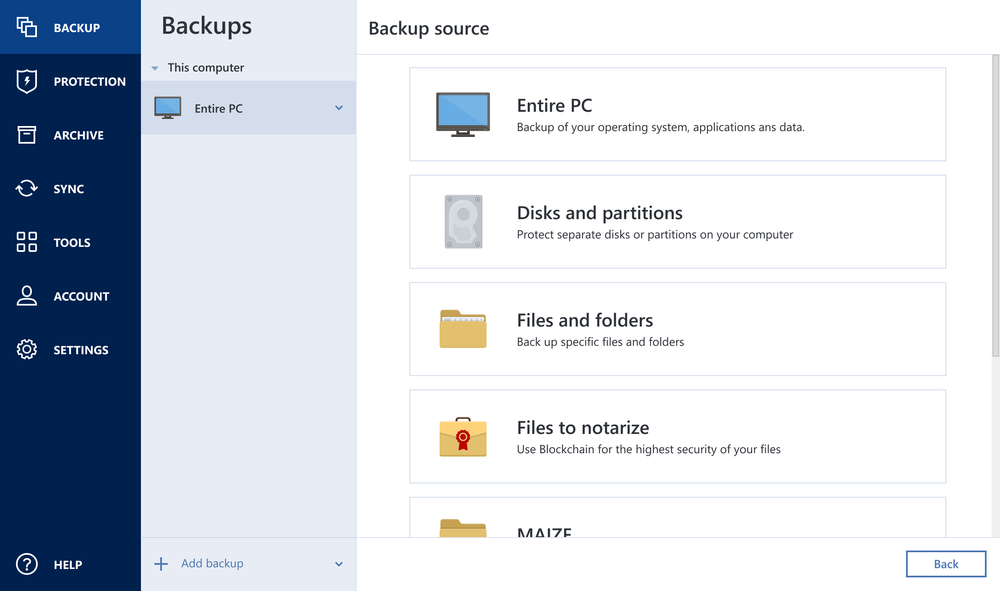
Acronis True Image combines backup with security tools. It can create file backups and full-disk images, allowing recovery of an operating system, applications, settings and data rather than only selected folders. The 2026 release also adds integrated patch management for Windows and strengthens its threat-detection features.
Acronis sells Essentials, Advanced and Premium subscriptions, with cloud storage and security capabilities varying by tier. Because prices and promotional bundles can change by region and device count, check the live Acronis True Image plans before purchasing.
Why Acronis stands out
- Full-disk imaging supports bare-metal and complete-machine recovery scenarios.
- Backup and anti-ransomware protection are combined in one application.
- Local and cloud destinations can be used as part of a layered strategy.
- It is well suited to users who want to preserve applications and system configuration as well as personal files.
What to consider
Acronis is more capable—and consequently more involved—than a set-and-forget file-backup service. Buyers need to compare storage limits, protected-device counts and which security features are included in each tier. People who already use a security suite may not need the combined package.
Best fit: power users, home offices and professionals who want image-based recovery and security features in the same product.
Read our Acronis review Check Acronis plans ↗
4. Carbonite Safe — best familiar alternative for one computer
Carbonite is a long-established name in consumer cloud backup. Carbonite Safe provides encrypted, automatic backup with unlimited capacity on its personal plans, and the Basic plan is currently advertised from $6.33 per month.
Its strength is a familiar consumer proposition: select an appropriate tier, install the software and allow it to protect eligible files. Higher plans can add features such as automatic video backup, external-drive backup or bundled security, so the cheapest plan should not be assumed to include everything. Compare current inclusions on the Carbonite personal backup page.
Why Carbonite may suit you
- Unlimited capacity is easy to understand.
- Automatic background backup reduces routine administration.
- Mobile and browser access provide convenient retrieval options.
- Several tiers let customers pay for additional recovery and device features when needed.
What to consider
Carbonite personal subscriptions are generally centred on one computer, and important capabilities vary by plan. Check video, external-drive and courier-recovery provisions rather than comparing only the headline monthly equivalent.
Best fit: a home user who wants a mainstream unlimited-backup alternative and is comfortable choosing among tiered feature levels.
5. CrashPlan — best for business endpoints and teams
CrashPlan now focuses on organisational data resilience rather than general consumer backup. It protects endpoints and offers options for servers, Microsoft 365 and Google Workspace. The company describes automatic protection, file versioning and flexible retention as central features.
CrashPlan’s small-business pricing is intended for organisations with up to 249 users, while larger deployments require a quotation. Licensing can depend on the product: CrashPlan for Small Business is documented as device-based, while SaaS backup uses its own user and capacity terms. Review the current CrashPlan small-business pricing for the exact workload.
Why CrashPlan stands out
- Business administration and endpoint protection are core use cases rather than add-ons.
- It can address workstations, servers and SaaS data within the same provider portfolio.
- Versioning and retention controls support recovery from accidental change and ransomware.
- It is positioned for organisations that need central visibility without operating their own backup infrastructure.
What to consider
CrashPlan is unlikely to be the best-value choice for a home user backing up one laptop. Small organisations should also distinguish workstation, server and Microsoft 365 or Google Workspace protection because one does not automatically include the others.
Best fit: freelancers with important work data and small businesses that need centrally managed endpoint backup.
Other strong option: EaseUS Todo Backup
EaseUS Todo Backup is worth considering when complete Windows recovery matters more than a simple cloud-only subscription. It combines file backup, full-system images, local and cloud destinations, disk cloning and bootable recovery tools.
Its cloud allowance and computer licensing vary by plan, so it is less straightforward than Backblaze or IDrive. It is strongest for users who want a hybrid local-and-cloud setup and the ability to rebuild an entire Windows computer.
Read our EaseUS review Check EaseUS plans ↗
Cloud backup services compared
| Feature | Backblaze | IDrive | Acronis | Carbonite | CrashPlan |
|---|---|---|---|---|---|
| Primary audience | Personal and workstations | Personal, teams and business | Personal and home office | Personal and small business | Business |
| Pricing basis | Per computer, unlimited data | Shared storage allowance | Tier, devices and cloud allowance | Per computer and tier | Business workload/device or user |
| Multiple computers | Separate licence for each | Yes, within allowance | Depends on licence | Separate or business plan | Yes, business-managed |
| Full disk imaging | No | Selected image/clone capabilities | Core strength | Plan-dependent recovery features | Endpoint file protection focus |
| Best reason to choose | Simplicity and unlimited capacity | Multi-device flexibility | System recovery plus security | Familiar unlimited backup | Central business resilience |
What about pCloud, Sync.com, OneDrive and Google Drive?
These services can play a valuable role, but they are primarily storage, synchronisation and collaboration platforms. They normally protect files placed in designated folders rather than automatically identifying and backing up all eligible user data across a computer.
pCloud offers annual and “lifetime” storage plans, including 500GB, 2TB and 10TB options, while Sync.com emphasises end-to-end encrypted storage and sharing. OneDrive and Google Drive integrate especially well with their respective productivity ecosystems. All can hold a second copy of important files, but none should be treated as a complete backup strategy without checking retention, version history, deletion behaviour and restore procedures.
Read our pCloud review Check pCloud plans ↗
A robust approach can use both categories: cloud storage for active files and collaboration, plus a separate backup system with independent retention.
Security and ransomware protection
Encryption is essential, but it is only one part of backup security. A provider may encrypt data in transit and at rest while still allowing an attacker with control of the account to delete backups. Evaluate:
- Multi-factor authentication for every administrator and user
- Private encryption-key options and their recovery consequences
- Version history long enough to pre-date an unnoticed infection
- Controls preventing immediate or unauthorised backup deletion
- Separate administrator accounts for business deployments
- Alerts for failed backups, unusual deletion or capacity limits
- Documented restore testing and recovery procedures
No cloud service removes the need for another copy. The familiar 3-2-1 principle—three copies of important data, on two types of media, with one copy off-site—remains a sensible starting point. For higher ransomware risk, make at least one copy offline or otherwise protected from routine account access.
How much should cloud backup cost?
For one personal computer, a realistic starting range is roughly $75 to $120 per year for mainstream automatic backup, depending on storage model and promotions. Multi-device services may appear more expensive until their allowance is compared with several per-computer licences.
Businesses should compare total recovery cost rather than subscription price alone. Important factors include administrator time, employee downtime, retention requirements, SaaS coverage, server support and whether large restores can be delivered efficiently. A low-cost plan that cannot restore the required workload is not a saving.
Our recommendation by situation
- One PC or Mac with lots of data: Backblaze.
- Several family computers and mobile devices: IDrive.
- Full-system images and integrated security: Acronis True Image.
- A familiar unlimited consumer alternative: Carbonite Safe.
- Business endpoint administration: CrashPlan.
- Private file sync and sharing: consider Sync.com, but pair it with a true backup plan where appropriate.
- NAS or technical application backup: compare object-storage destinations such as Backblaze B2 alongside compatible backup software.
Related cloud backup comparisons
Frequently asked questions
Is cloud backup worth paying for?
Yes, when the files would be expensive, distressing or impossible to recreate. Cloud backup provides an off-site copy that remains available if a computer and its local backup are stolen, damaged or encrypted together.
Is an external hard drive enough?
An external drive is useful and often makes large restores faster, but a permanently connected drive can be affected by theft, fire, electrical damage or ransomware. Combine local backup with an off-site copy.
Does Microsoft 365 or Google Workspace include backup?
They include resilience, retention and recovery features, but those controls are not identical to an independent backup. Organisations should assess deletion retention, administrator compromise, legal requirements and whether they need point-in-time, separately controlled copies.
Can cloud backup protect an external drive?
Some services can, but conditions vary. Providers may require the drive to be reconnected periodically and may delete its cloud copy after a defined absence. Check the current external-drive retention rule before relying on it.
What happens if I lose a private encryption key?
With true private-key encryption, the provider may be unable to recover the key or decrypt the backup. That improves privacy but makes secure key storage essential.
Final verdict
Backblaze is our best starting recommendation for simple personal cloud backup because its unlimited per-computer plan is easy to understand and requires little capacity planning. IDrive is the better all-round choice for several devices, provided the account is monitored to avoid exceeding its storage allowance. Acronis True Image is the strongest option when full-system recovery and integrated cyber protection justify additional complexity.
The decision should ultimately be validated with a restore. Whichever service you choose, back up representative files, enable multi-factor authentication and perform a test recovery before assuming the system is ready for an emergency.
Sources and checking: Provider features and prices were checked against official Backblaze, IDrive, Acronis, Carbonite, CrashPlan and EaseUS information, with EaseUS details updated on 29 September 2026. Some outbound links are affiliate links, but affiliate availability does not determine inclusion or ranking.