Best Personal Cloud Backup Services in 2026
Compare the best personal cloud backup services for one computer, families, multiple devices, photos and complete-system recovery.

Backblaze is our leading personal cloud backup choice for someone protecting one main Windows PC or Mac: it is automatic, easy to understand and does not impose a normal storage limit. IDrive is the stronger option for a household with several computers and mobile devices, while Acronis True Image is better when you want to recover an entire system rather than only personal files.
Editorial note: This guide compares current plan information, documented features and suitability. We do not claim hands-on speed or restore findings that have not yet been measured. Prices and features were checked on 23 September 2026 and may change.
Best personal cloud backup: quick recommendations
| Service | Best for | Current pricing position | Main limitation |
|---|---|---|---|
| Backblaze | Simple unlimited backup for one PC or Mac | $9 monthly, $99 yearly or $189 for two years | Each computer needs its own licence |
| IDrive Personal | Families and people with multiple devices | 5TB plan listed around $99.50 yearly before promotions | Storage is capped and overage can apply |
| Acronis True Image | Full-system images, cloning and cyber protection | From $49.99 yearly for one computer | Cloud storage depends on the selected tier |
| Carbonite Safe | Automatic unlimited backup with tiered extras | Basic plan $95.99 yearly | Video and external-drive features vary by plan |
Our recommendation: choose Backblaze if you have one main computer and want backup to happen with the least administration. Choose IDrive when several family computers and phones must share one account. Choose Acronis if a failed drive should be recoverable as a complete machine with its operating system, applications and settings.
What personal cloud backup should protect
A good personal backup plan starts with the files that would be difficult or impossible to replace:
- Family photographs and home videos
- Personal documents, scans and financial records
- Creative projects and freelance work
- University or school work
- Email archives and locally stored messages
- Phone photographs and videos
- Files held on external drives
- Computer settings, applications and operating-system images where required
The appropriate service depends on where those files live. A desktop-backup application may protect a Windows PC and a connected drive but not automatically protect an iPhone. A mobile photo-backup app may preserve the camera roll while ignoring documents stored elsewhere on the computer.
1. Backblaze — best simple backup for one computer
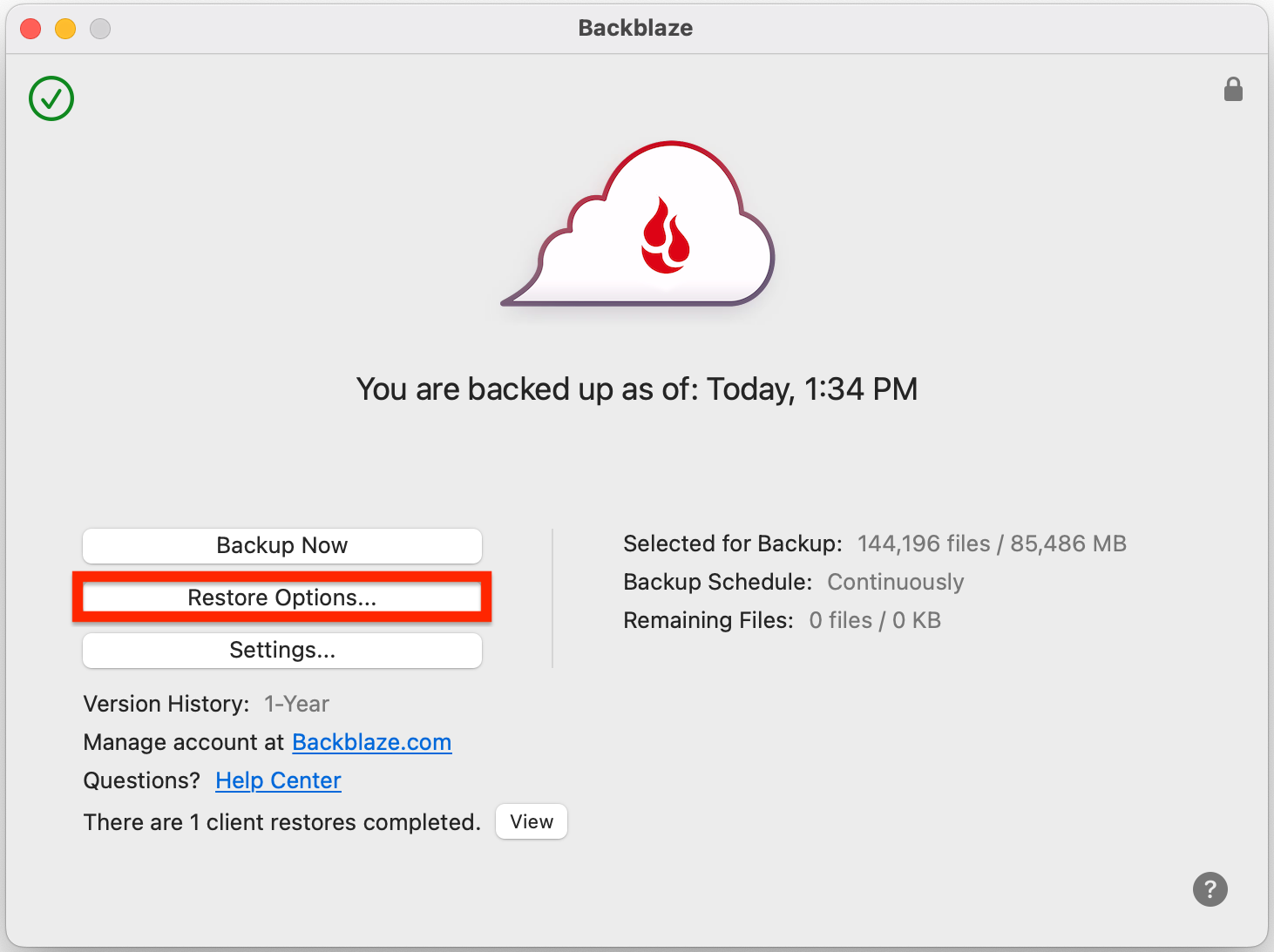
Backblaze Computer Backup is designed for people who want their backup software to make most of the decisions automatically. It protects user-created data on a Windows PC or Mac and supports connected external drives, subject to the provider’s connection and retention conditions.
Current pricing is $9 per month, $99 per year or $189 for two years, with unlimited backup capacity for one licensed computer. A 15-day trial is available. Check the official Backblaze Personal Backup page.
Why Backblaze is our leading personal choice
- Unlimited capacity avoids estimating how many terabytes you will eventually need.
- Automatic file selection suits non-technical users.
- It supports both Windows and macOS.
- Connected external drives can be included.
- Annual and two-year pricing are straightforward.
- One-year version history is available without an additional subscription charge.
Version history matters
Cloud backup must retain older and deleted files long enough for you to notice a problem. Backblaze documents 30-day history as the base behaviour, with the option to extend history to one year free of charge. Forever Version History is available at an additional usage-based price for data retained beyond one year. See the Backblaze version-history explanation.
What to consider
The subscription protects one computer. A household with four laptops normally needs four Backblaze licences, which may cost more than a shared-capacity plan. Backblaze Computer Backup also is not intended as general NAS or server backup; Backblaze B2 is a different, metered product used with compatible backup software.
Best fit: an individual, photographer or home worker with one main computer and a large amount of personal data.
2. IDrive Personal — best for multiple computers and family devices
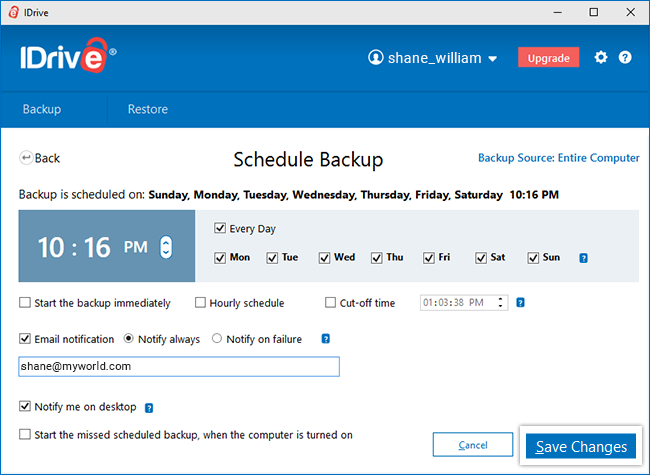
IDrive Personal uses a shared storage allowance rather than unlimited data for one machine. One account can back up multiple Windows PCs, Macs and supported mobile devices, making it attractive for families or individuals who own several computers.
The standard 5TB Personal plan is listed at approximately $99.50 per year, although IDrive frequently advertises lower introductory prices. The service also offers a 10TB tier. Always check the renewal figure and the current IDrive pricing page.
Why IDrive stands out
- Multiple computers and supported phones can use one account.
- 5TB and 10TB personal allowances suit many households.
- Backup and separate sync capacity are included within the wider service.
- Snapshot-style history supports recovery to earlier data states.
- IDrive Express can use a shipped drive for large transfers, subject to current terms and charges.
- The service provides more configuration control than Backblaze.
What to consider
The allowance is not unlimited. IDrive states that Personal-plan overuse can be charged at $0.25 per GB per month, so alerts and regular capacity checks are important. Large video libraries, disk images and several computers can consume 5TB more quickly than expected.
The range of similarly named IDrive products can also be confusing. Personal computer backup, IDrive e2 object storage and separate cloud-to-cloud backup products solve different problems.
Best fit: a family or individual with several computers and mobile devices who prefers one shared account.
Read our IDrive review Check IDrive pricing ↗
3. Acronis True Image — best for complete-system recovery
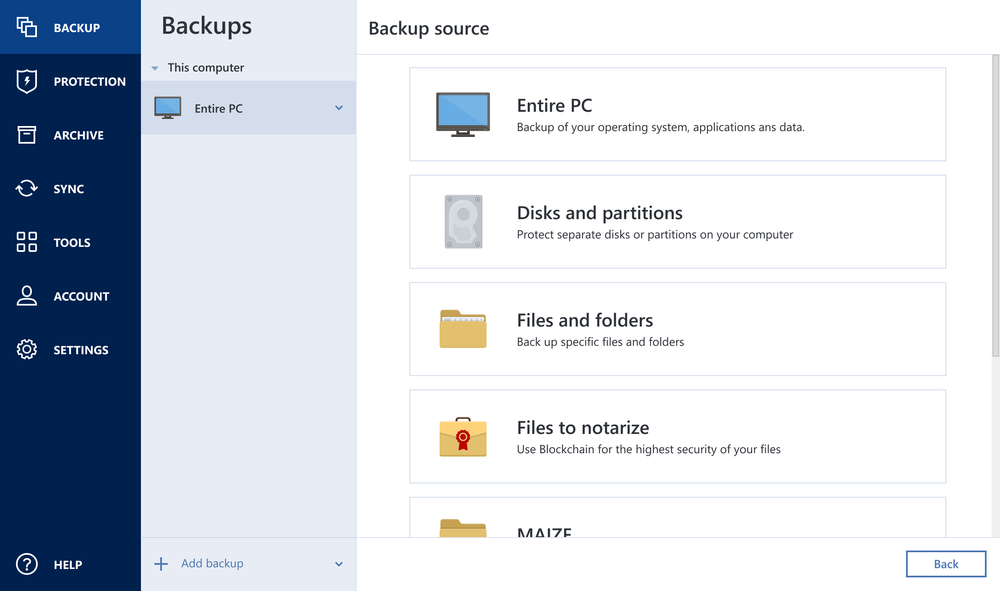
Acronis True Image can back up individual files and create full-system images containing the operating system, applications, settings and data. That makes it particularly useful when the objective is to rebuild a failed or replaced computer rather than download documents one folder at a time.
Acronis lists its Essentials plan from $49.99 per year for one computer. Essentials focuses on local backup, while Advanced and Premium plans introduce cloud storage and additional security capabilities. The Premium tier includes 1TB of cloud storage with larger capacity options available. Compare the current Acronis True Image plans.
Why Acronis stands out
- Full-image backup can restore an entire system.
- Disk cloning helps with drive replacement and migration.
- Local and cloud backup options support a layered strategy.
- Anti-ransomware and malware protection are integrated.
- True Image 2026 adds Windows patch-management capabilities.
What to consider
The entry plan’s low price should not be confused with a full cloud-backup subscription: Essentials is centred on local backup. Buyers need to compare cloud capacity, computer count and included security features carefully. Acronis is also more complex than an automatic file-backup tool and may duplicate an existing security product.
Best fit: a technically confident home user, gamer, creator or home-office worker who values disk images and full-machine recovery.
Read our Acronis review Check Acronis plans ↗
4. Carbonite Safe — best established unlimited alternative
Carbonite Safe provides automatic, encrypted cloud backup for one computer. Its personal range uses unlimited capacity, with features increasing across Basic, Plus and Prime tiers.
Published annual prices are currently $95.99 for Basic, $131.99 for Plus and $161.99 for Prime. Carbonite advertises promotions periodically, so renewal cost should be checked separately. See the Carbonite Personal pricing page.
Why Carbonite may suit you
- Unlimited capacity is easy to budget for.
- Automatic background backup reduces routine work.
- Files can be accessed from supported mobile and browser interfaces.
- Higher tiers add features for users with broader recovery needs.
- It is a long-established consumer-backup product.
What to consider
Important features differ by tier. Carbonite’s comparison information indicates that external-drive backup is not part of Basic, while automatic video backup and other extras vary. Every personal subscription covers one computer, so households should compare the cost with a multi-device IDrive plan.
Best fit: someone who wants an automatic unlimited alternative to Backblaze and is comfortable choosing the correct Carbonite tier.
Other strong option: EaseUS Todo Backup
EaseUS Todo Backup suits Windows users who want cloud backup alongside full-system images, local external-drive backup and disk cloning. It provides broader recovery tools than a basic online-backup client, although cloud capacity and licensing depend on the selected offer.
Choose it when rebuilding a failed Windows installation is a priority. Backblaze remains simpler for unlimited cloud backup, and IDrive is easier to licence across several household devices.
Read our EaseUS review Check EaseUS plans ↗
Personal cloud backup services compared
| Feature | Backblaze | IDrive Personal | Acronis True Image | Carbonite Safe |
|---|---|---|---|---|
| Primary pricing model | Unlimited per computer | Shared storage allowance | Device, tier and capacity | Unlimited per computer |
| Multiple computers | Separate licence each | Yes, within allowance | Depends on licence | Separate licence each |
| Full disk images | No | Selected image/clone features | Core strength | Not the main personal proposition |
| External-drive backup | Yes, conditions apply | Yes | Yes | Higher tier required |
| Best reason to choose | Simple unlimited backup | Many devices under one account | Full-system recovery | Established unlimited alternative |
Cloud backup versus OneDrive, Google Drive and iCloud
OneDrive, Google Drive and iCloud are valuable services, but their primary role is synchronisation, storage and access across devices. If a file is deleted or damaged, the unwanted change may synchronise too. Version history and recycle-bin retention can help, but they are not always equivalent to an independently managed backup.
This does not mean you should stop using them. A sensible setup might use:
- OneDrive, Google Drive or iCloud for active files and device integration
- A separate computer-backup service for an independent off-site copy
- An external drive for fast local recovery
pCloud and Sync.com similarly provide secure storage, sync and sharing. They can hold additional copies and may be excellent for selected folders, but users should verify whether the service automatically protects all required computer data, how deletions propagate and how long previous versions remain available.
Read our pCloud review Check pCloud plans ↗
What about phone photo backup?
Phone photo backup is often separate from computer backup. iCloud Photos, Google Photos, OneDrive camera upload and IDrive’s mobile functions can preserve photographs, but settings and storage limits matter.
Check whether the phone is uploading full-resolution originals, whether deleting a photo from one device also deletes it from the cloud, and whether shared albums contain independent copies. Periodically download a sample photograph and video to confirm that the original file can be recovered.
Security and privacy checklist
- Enable multi-factor authentication. A stolen password should not expose or delete the backup.
- Use a unique password. Store it in a reputable password manager.
- Understand encryption. Check encryption in transit, at rest and whether a private-key option exists.
- Protect recovery codes. Keep them somewhere separate from the protected computer.
- Check retention. Longer history helps when loss or ransomware is discovered late.
- Keep another copy. Do not make one cloud account the only place an irreplaceable file exists.
- Test restores. Recover representative photos, documents and a large file before an emergency.
How much storage do you need?
Check the used space on every computer and external drive you intend to protect. Then allow room for growth and version history. Documents use relatively little space, while RAW photographs, 4K video and system images can consume terabytes.
- Under 500GB: most mainstream plans provide ample capacity.
- 500GB to 2TB: unlimited per-computer plans and 5TB pooled plans are both realistic.
- 2TB to 5TB: compare one unlimited computer licence against a shared 5TB allowance.
- Above 5TB: unlimited backup may offer better value for one computer, while multi-device households should calculate pooled storage carefully.
“Unlimited” still has acceptable-use, device and supported-data rules. It does not normally mean that one licence can protect any number of computers, servers or NAS devices.
Our recommended home backup setup
For most households, one cloud subscription should be only part of the plan:
- Keep the working copy on the computer or phone.
- Use automatic cloud backup for an off-site copy.
- Back up important files to an external drive.
- Disconnect or otherwise protect the local backup when it is not running.
- Enable MFA and store recovery information safely.
- Test restores at least several times a year and after major changes.
This follows the spirit of the 3-2-1 approach: maintain three copies of important data, on two types of storage, with one copy off-site.
Related personal backup comparisons
Frequently asked questions
Which cloud backup is easiest to use?
Backblaze is the clearest starting point for one computer because it automatically selects user data and does not require capacity planning. Ease of use still should be confirmed during the free trial.
Which service is best for a family?
IDrive is often the better fit when several computers and mobile devices must share one account. Confirm that the chosen 5TB or 10TB allowance is large enough for every device and retained version.
Can I back up both Windows and Mac computers?
IDrive supports multiple Windows PCs and Macs under one allowance. Backblaze and Carbonite support the major desktop platforms but charge per protected computer. Verify current operating-system versions before subscribing.
Is unlimited cloud backup really unlimited?
It generally means no fixed data allowance for one supported computer. It does not mean unlimited computers or every type of storage device. External drives must usually be reconnected periodically, while NAS and servers may be excluded.
Can cloud backup recover ransomware-encrypted files?
It can help if clean versions were backed up before encryption and remain within the retention period. Secure the backup account with MFA and keep another isolated copy because attackers may attempt to delete accessible backups.
Should I use a private encryption key?
A private key can improve confidentiality because the provider cannot normally decrypt the data. The trade-off is that losing the key may make the backup permanently unrecoverable.
Final verdict
Backblaze is our best personal cloud backup recommendation for one main PC or Mac because unlimited capacity and automatic operation remove much of the complexity. IDrive Personal is the better choice for families and multi-device users, provided storage consumption is monitored. Acronis True Image is the strongest option for complete system images and disk recovery, while Carbonite remains a credible automatic unlimited alternative.
Whichever service you choose, run a trial, restore several real files and keep another copy of anything you cannot replace. A backup is only trustworthy after you have proved that recovery works.
Sources and checking: Features and prices were checked against official Backblaze, IDrive, Acronis, Carbonite and EaseUS information, with EaseUS details updated on 29 September 2026. Some outbound links are affiliate links, but affiliate availability does not determine inclusion or ranking.