Cloud Backup for External Hard Drives
How to protect USB and external hard drives in the cloud, including connection rules, retention limits and restore planning.
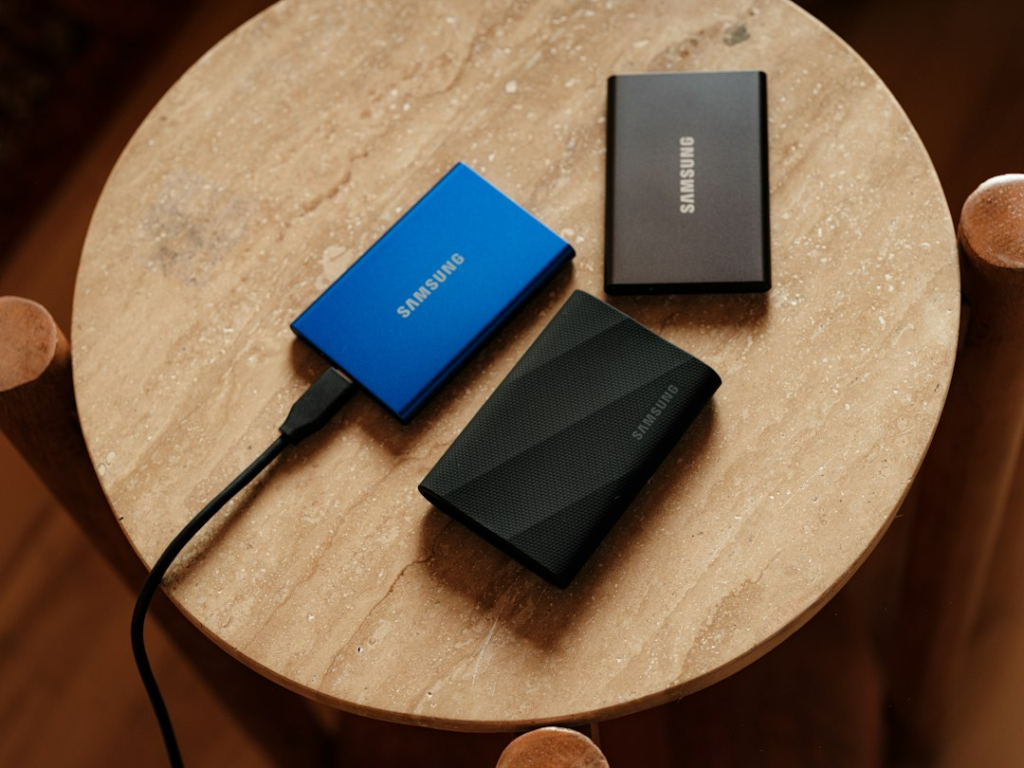
External hard drives are often used as backups, but many also become the only home for large photo, video or project archives. If the computer fails, the drive is stolen or both devices are damaged together, those files may have no independent recovery copy.
A cloud service can protect supported external drives, but policies differ. Some require the drive to remain connected or be reconnected regularly. Others use a shared storage allowance and keep archived files until the user deletes them. These rules matter as much as the advertised price.
What to check before choosing a provider
| Question | Why it matters |
|---|---|
| Is the drive type supported? | USB drives may be included while NAS or network shares are excluded |
| How often must it reconnect? | A missing drive can be treated as deleted data |
| Does it share the plan allowance? | Large archives can fill a capacity-based plan |
| Are permissions or encryption supported? | Locked or restricted volumes may not be readable by the backup agent |
| How can the data be restored? | Multi-terabyte recovery may be slow without physical-media options |
Backblaze external-drive rules
Backblaze supports directly attached external drives, but its default 30-day version history requires the drive to be reconnected at least once every 30 days to keep its data in the current backup. Backblaze recommends connecting selected drives more frequently and offers longer version-history options. Because policies can change, verify the current rule before relying on a rarely connected archive.
IDrive and capacity-based backup
IDrive can protect multiple computers and external drives under a shared allowance. Its archiving behaviour differs from a mirror: files can remain in the account until they are manually removed or archive cleanup is used. That can be useful for intermittently connected storage, but the retained data continues to consume account capacity.
External drive, local backup or primary storage?
If the drive contains the only copy of files, it is primary storage—not a backup. A robust arrangement keeps the working copy, a separate local backup and an offsite copy. The 3-2-1 backup rule explains this structure.
How to configure the first backup
- Connect and mount the drive using its normal drive letter or volume name.
- Confirm the backup application can read it.
- Select only the required folders or the whole supported volume.
- Keep the computer and drive awake during the initial upload.
- Check the provider dashboard for completion and exclusions.
- Restore a sample folder to a different location.
Plan for large restores
Downloading several terabytes can take days. Estimate recovery time using your downstream speed and consider whether the provider offers shipped-drive recovery. Also ensure the replacement disk has enough usable capacity and a compatible file system.
Common mistakes
- Disconnecting a drive before the initial backup finishes.
- Changing its mount point so the software treats it as a different drive.
- Assuming a NAS is supported because USB storage is supported.
- Ignoring missing-drive alerts.
- Deleting the local files before confirming cloud recovery.
Compare relevant services in our best personal cloud backup guide.
Continue learning: calculate how much backup capacity you need and include the drive in a 3-2-1 backup plan.
Frequently asked questions
Can every cloud backup service protect external drives?
No. Support depends on the product, operating system, drive connection and selected plan.
Can I disconnect the drive after backup?
Often yes, but the provider may require regular reconnection or retain disconnected data only for a limited period.
Does cloud backup work with a NAS?
Not automatically. NAS and network-share support is commonly a separate feature or business product.
Will the provider mail a restore drive?
Some services offer physical-media restore options, sometimes with deposits, fees or regional restrictions. Check current terms.