EaseUS Todo Backup Review 2026: Is It Worth It?
EaseUS Todo Backup combines Windows system imaging, file backup, disk cloning and cloud storage. Our independent review examines its plans, strengths and limitations.
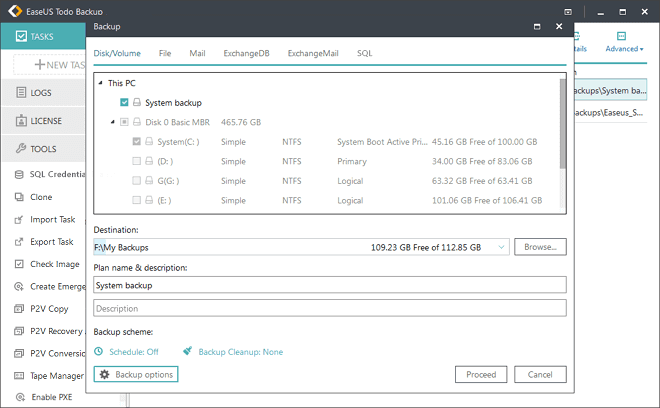
EaseUS Todo Backup is a versatile Windows backup suite for users who want system images, local backup, disk cloning and cloud destinations in one application. It offers broader recovery tools than a simple online-backup service, although licensing and cloud-storage allowances need careful comparison.
What we like
- ✓File, disk, partition and full-system backup
- ✓Local, NAS and cloud destinations
- ✓Disk cloning and system migration
- ✓Bootable recovery tools
- ✓Free personal edition available
Where it falls short
- –Windows-centric personal product
- –Cloud allowance varies by plan
- –Normally licensed per computer
- –More complex than cloud-only backup
Rating breakdown
Affiliate disclosure: we may earn a commission from selected links, without increasing the price you pay. This does not determine our verdict.
EaseUS Todo Backup is a capable Windows backup suite for people who want file backup, full-system images, disk cloning and cloud storage in one application. It offers more recovery tools than a simple cloud-backup service, but its licensing and cloud-storage options require closer comparison. It is best suited to Windows users who want both local and off-site protection rather than effortless unlimited cloud backup.
Review basis: This independent review assesses EaseUS Todo Backup using the provider’s current product pages, documentation, purchase options and supported features. We have not assigned laboratory speed or restore-test results that have not been measured. Details were checked on 29 September 2026.
EaseUS Todo Backup review: quick verdict
| Our verdict | A versatile Windows backup and disk-imaging toolkit with useful cloud options |
|---|---|
| Best for | Windows users wanting system images, file backup, cloning and cloud storage |
| Current pricing | Monthly, yearly, two-year and lifetime licences are offered; cloud storage depends on the plan |
| Cloud storage | EaseUS Cloud and supported third-party cloud destinations |
| Local backup | Internal drives, external storage, NAS and network locations |
| Supported computers | Home licences normally cover one Windows computer; business editions are licensed separately |
| Free option | Todo Backup Free and a time-limited Home trial |
| Our assessment | 4.1 out of 5 |
Bottom line: EaseUS Todo Backup is strongest when cloud backup is only one part of the recovery plan. It can protect files, create complete system images, clone drives and prepare recovery media. Backblaze remains simpler for automatic unlimited backup of one computer, while IDrive provides a more established multi-device cloud-backup model. EaseUS is the better fit when rebuilding a Windows machine or replacing a failed disk is a priority.
Check EaseUS Todo Backup plans →
What is EaseUS Todo Backup?
EaseUS Todo Backup is a Windows backup and recovery application from EaseUS. The personal editions combine several functions that are often separated into different products:
- File and folder backup
- Windows system-image backup
- Disk and partition imaging
- Full, incremental and differential backup schedules
- Local, network, NAS and cloud destinations
- Disk and system cloning
- Bootable recovery media
- Image checking, mounting and individual-file recovery
This is a broader product than a basic online-backup client. A service such as Backblaze concentrates on continuously protecting user files in the provider’s cloud. EaseUS also handles local recovery, disk replacement and complete-machine restoration. That breadth is useful, although it creates more settings and purchasing decisions.
EaseUS Todo Backup pricing in 2026
EaseUS offers several licence types, and promotional pricing can change frequently. At the time of checking, its dedicated cloud-backup purchase page displayed monthly, yearly, two-year and lifetime options for one computer.
| Licence | Published position | Cloud storage | Best suited to |
|---|---|---|---|
| Monthly | Subscription for one Windows computer | Check the live checkout | Short-term use or evaluation |
| Yearly | Annual subscription | Currently advertised with 1TB on the cloud-backup offer | Ongoing local and cloud protection |
| Two-year | Longer subscription | Currently advertised with 1TB on the cloud-backup offer | Users comfortable making a longer commitment |
| Lifetime | Perpetual software licence | No cloud allowance shown on the offer reviewed | Primarily local backup and cloning |
| Free | Free personal edition | Features are more limited | Basic local file, disk and system backup |
The important distinction is that a lifetime software licence does not necessarily provide lifetime cloud storage. Buyers should confirm the storage allowance, renewal terms, protected-computer count and tax on the final order screen. The annual cloud offer reviewed listed 1TB, while the product page advertised a 30-day trial with 250GB of cloud storage.
How EaseUS backup works
Users install Todo Backup on a Windows computer, choose the backup type and select a destination. A job can protect individual files, selected partitions, an entire disk or the Windows system. The destination may be another local disk, an external drive, network storage, a NAS device or a supported cloud service.
After the first full backup, incremental or differential jobs can capture subsequent changes. This reduces routine backup time and storage use compared with creating a new full image every day.
Scheduling and retention
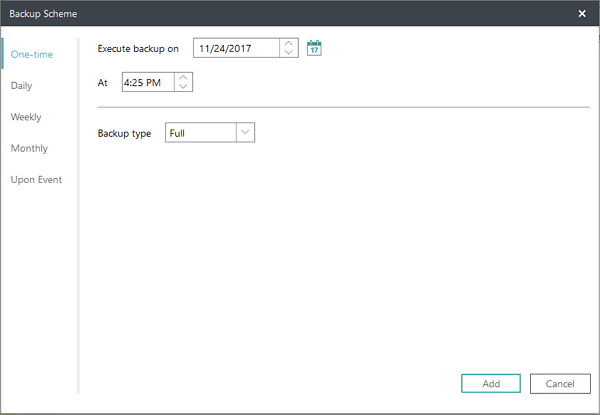
Backup jobs can run on a schedule. Available options include one-time, daily, weekly and monthly operation, with exact capabilities depending on the edition. Users should also configure an image-reserve or cleanup policy so older backup chains do not consume all available storage.
Cloud-backup options
EaseUS documents support for its own cloud service and selected third-party cloud destinations. Business editions also describe public-cloud targets such as Microsoft Azure, Amazon S3, Google Cloud, Google Drive and Dropbox, depending on the edition and workflow.
This flexibility can be valuable, but it is less straightforward than buying an unlimited cloud-backup subscription. The software licence, cloud allowance and third-party storage charges may be separate. Before relying on a configuration, confirm:
- Which cloud destination is supported by the selected edition
- Whether cloud capacity is included or billed separately
- How long deleted files and previous backup versions remain available
- Whether the backup is encrypted before upload
- How a large restore would be downloaded
- What happens when the software subscription expires
Full-system images and recovery
System imaging is one of the main reasons to choose EaseUS. A system backup can include Windows, boot information, installed applications, settings and files. If a drive fails or Windows no longer starts, the user can boot into recovery media and restore the image.
This can reduce recovery time because the operating system and applications do not need to be installed individually. However, image recovery requires preparation. Create the bootable rescue media before an emergency, store it away from the protected computer and test that the recovery environment can see both the backup location and the replacement disk.
Disk and system cloning
Todo Backup can also clone a disk or migrate Windows to another drive. Cloning is particularly helpful when moving from a hard disk to an SSD or replacing a drive before it fails. A clone is not a substitute for versioned backup: accidental deletion, corruption or ransomware may be copied to the clone. Keep an independent backup history as well.
Ransomware protection and Security Zone
EaseUS promotes a Security Zone feature that stores backups in a protected partition intended to be inaccessible to ordinary malware. This may add a useful layer, but a protected partition on the same physical computer does not replace an off-site copy. Hardware failure, theft, fire or an attacker with sufficient administrative control can still threaten locally stored backups.
A stronger design combines:
- The working data on the computer
- A local backup or system image for fast restoration
- An off-site or cloud copy using separate credentials
Disconnect removable backup drives when they are not required, enable multi-factor authentication wherever available and periodically restore representative files.
EaseUS Todo Backup for business
EaseUS sells Workstation, Server, Advanced Server and Technician editions. The business range adds capabilities for Windows Server, SQL Server, Exchange, Active Directory and service-provider workflows. Exact functions differ significantly by edition.
EaseUS Backup Center is a separate central-management console used with Todo Backup clients. It allows an administrator to organise computers, deploy policies and monitor jobs. It does not perform every restore itself; recovery is carried out through the appropriate Todo Backup client.
For a small Windows-led organisation, the business range can combine endpoint, server and cloud-destination support. Before purchasing, map every computer, server, database and storage target to the required edition and obtain a written licence quotation.
Explore EaseUS business backup →
EaseUS Todo Backup versus IDrive and Backblaze
| Feature | EaseUS Todo Backup | IDrive Personal | Backblaze Personal |
|---|---|---|---|
| Primary strength | System images, local backup and cloning | Multi-device cloud backup | Simple unlimited cloud backup |
| Storage model | Depends on software and cloud option | Shared capacity allowance | Unlimited per licensed computer |
| Full-system images | Core capability | Supported workflows available | Primarily file-focused |
| Local backup | Strong | Included | Not its main purpose |
| Multiple computers | Normally licensed per computer or business edition | Multiple devices under one account | One computer per subscription |
| Best fit | Windows recovery and disk replacement | Households with several devices | One computer with a large data set |
Choose EaseUS when complete Windows recovery, local images and disk cloning matter most. Choose IDrive for several computers and mobile devices under one cloud allowance. Choose Backblaze for the simplest unlimited off-site file backup.
Advantages and limitations
What we like
- File, disk, partition and complete-system backup
- Local, network, NAS and cloud destinations
- Full, incremental and differential backup methods
- Disk cloning and system migration tools
- Bootable recovery environment
- Free personal edition and Home trial
- Separate business editions and central management
What to consider
- Windows-centric personal product
- Cloud allowance varies by offer and licence
- One-computer Home licensing is less convenient for large households
- More setup and maintenance than an automatic cloud-only service
- Lifetime software does not mean lifetime cloud storage
- Business editions and destinations require careful comparison
Who should choose EaseUS Todo Backup?
EaseUS is a strong choice if:
- You use Windows and want complete system-image recovery.
- You want cloud and local backup in one application.
- You are replacing or upgrading a hard drive or SSD.
- You need scheduled incremental or differential images.
- You want a free edition before buying.
- Your small business needs Windows workstation or server protection.
Consider an alternative if:
- You want unlimited cloud storage with minimal configuration.
- You need one personal subscription for many computers.
- Your household mainly uses macOS.
- You do not want to manage backup chains, destinations and rescue media.
- You expect a lifetime licence to include permanent cloud capacity.
How we would configure EaseUS Todo Backup
- Create a system image to an external drive.
- Create bootable recovery media and verify that it starts.
- Schedule regular file or system backups.
- Configure retention so the destination does not fill unexpectedly.
- Add a cloud or off-site destination for irreplaceable data.
- Use separate account credentials and multi-factor authentication where available.
- Disconnect removable media when it is not being used.
- Restore several files and confirm that they open correctly.
- Document the full-system recovery steps.
- Review the subscription and cloud-storage renewal terms.
Frequently asked questions
Is EaseUS Todo Backup a cloud-backup service?
It is primarily backup and recovery software that supports cloud destinations. Depending on the plan, users can store backups in EaseUS Cloud or supported third-party cloud services. The included capacity and terms vary.
Does EaseUS Todo Backup offer a free version?
Yes. Todo Backup Free provides core personal backup functions. The Home edition adds more advanced capabilities and is also available as a trial.
Can EaseUS back up an entire Windows computer?
Yes. It can create a system image containing Windows, boot information, applications, settings and data for full-machine recovery.
Does the lifetime licence include lifetime cloud storage?
No lifetime cloud allowance was shown with the lifetime offer reviewed. Treat the perpetual software licence and cloud-storage entitlement as separate items unless the checkout explicitly states otherwise.
Can EaseUS back up to an external drive or NAS?
Yes. The software supports local disks, external storage, network locations and NAS workflows alongside cloud destinations.
Is EaseUS suitable for a small business?
Potentially. Workstation, Server, Advanced Server and Technician editions cover different workloads, while Backup Center provides central management. Businesses should match the edition to every endpoint and server before purchase.
Does EaseUS work on Mac?
EaseUS offers a separate Todo Backup for Mac product. The Windows Home feature set and interface reviewed here should not be assumed to apply to the Mac edition.
Final verdict
EaseUS Todo Backup is a strong choice for Windows users who want more than an online copy of personal files. Its system imaging, local backup, cloud destinations, cloning and recovery-media tools can form a comprehensive recovery plan.
The trade-off is complexity. Cloud capacity, licence duration and computer count vary by offer, and users must maintain backup schedules, retention and recovery media. Those wanting a simple unlimited cloud service may prefer Backblaze, while multi-device households may find IDrive easier to licence.
For a Windows computer where complete-machine recovery and drive replacement matter, EaseUS offers a valuable combination of local and off-site protection. Confirm the current cloud allowance at checkout, keep an independent copy and test the restore process before relying on it.
Editorial independence: Prices and features were checked against official EaseUS information on 29 September 2026. Some links on this page are affiliate links, which may earn Cloud Backup Guide a commission without increasing the price you pay. Affiliate availability does not determine our rating or recommendation.